
Game Scores & Game Sheet Update Guide
Follow the steps below to update match results and complete the game sheet after a Dragons game.
7 step volunteer process
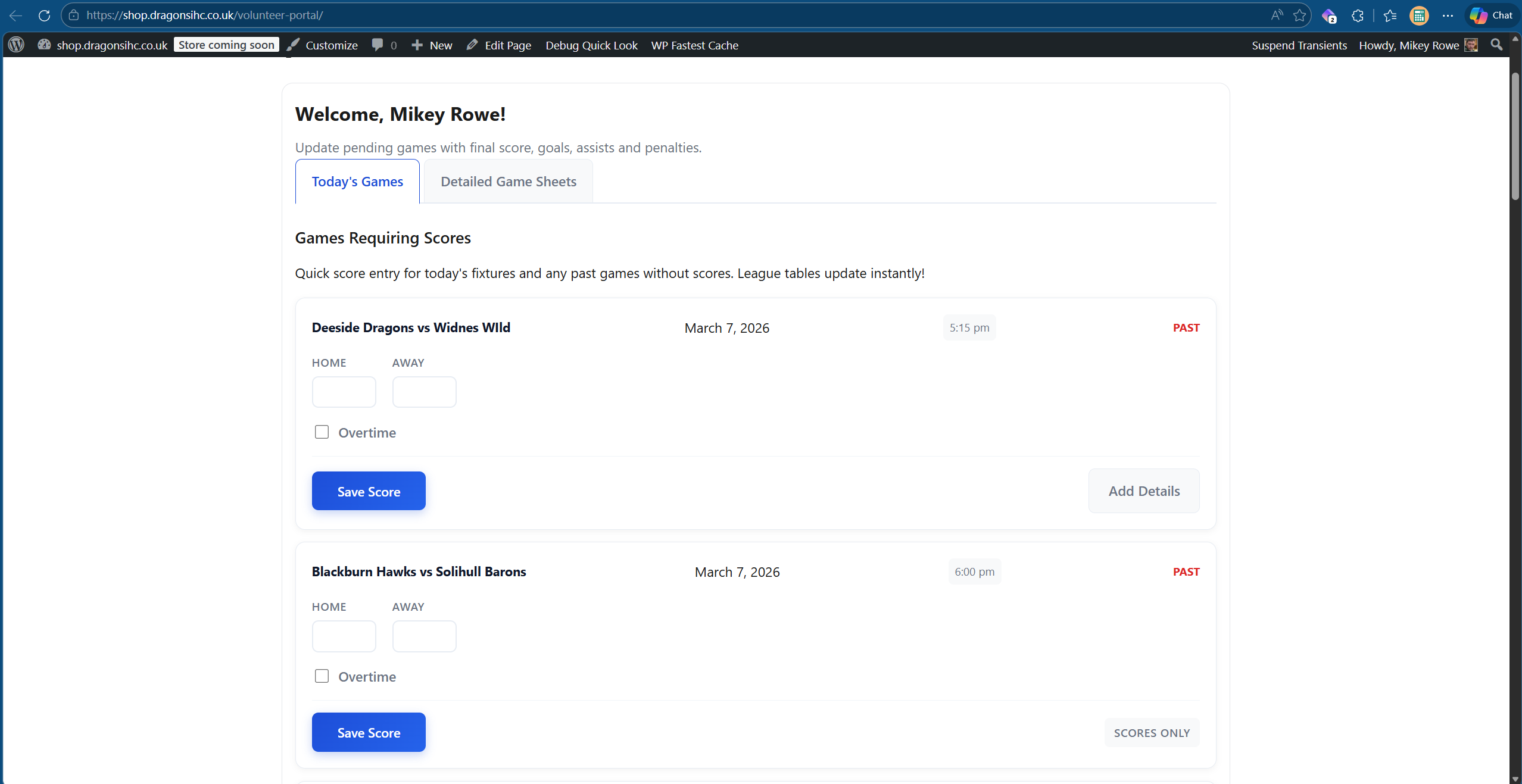
Update scores
When you log in, you will see all games that have already been played but have not yet been updated. Go through each one, enter the correct score and click Save Score.
- Only completed games should be updated.
- Work through every outstanding result shown on the page.
- This should always be done before starting game sheet updates.
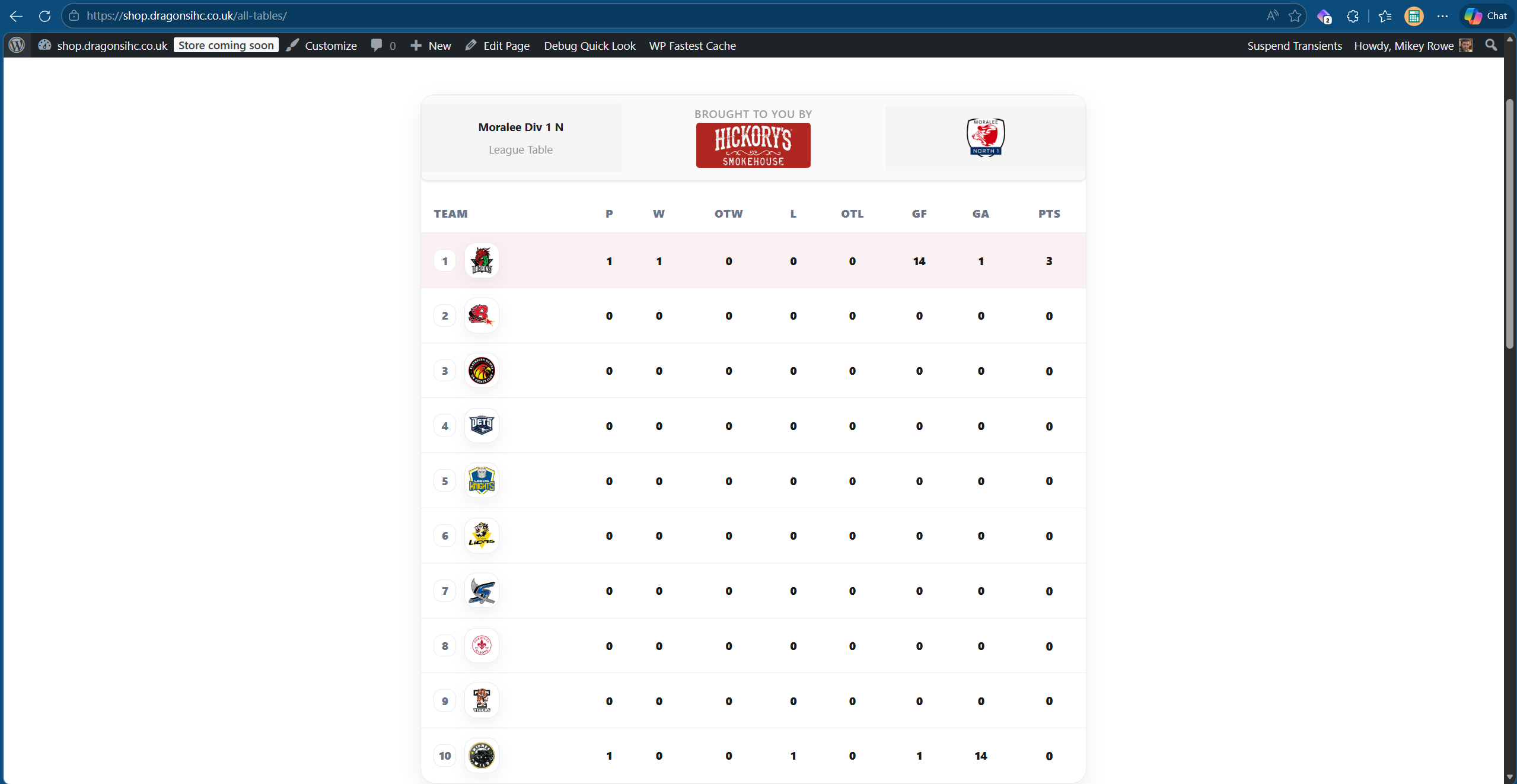
Saving scores updates league and cup tables
As soon as scores are saved, the system can automatically update league tables and cup tables where the fixture applies.
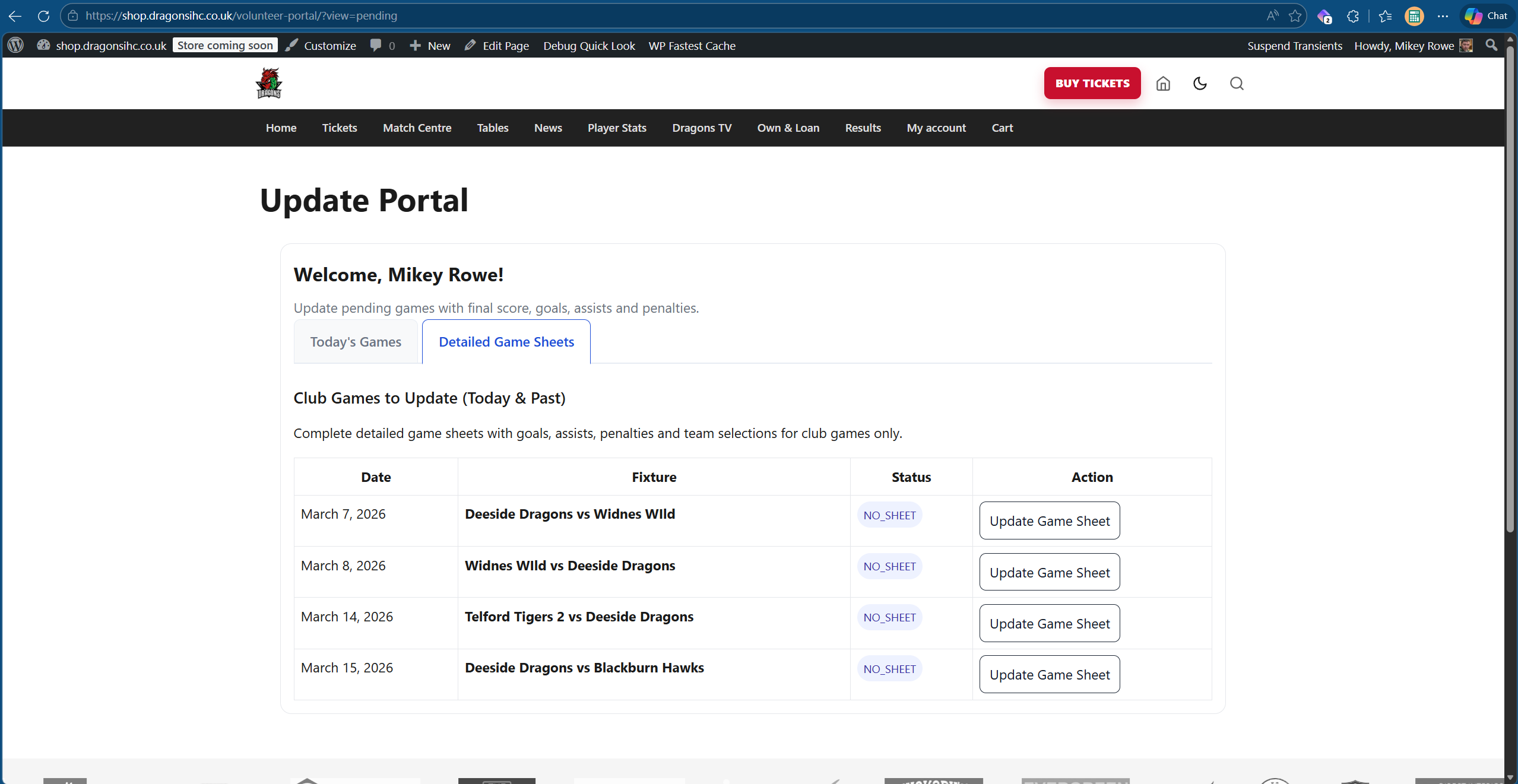
Select the game sheet
Once scores have been saved, go to the game sheet area and select the fixture you have the official game sheet for. This opens the match so you can begin entering the detailed data.
- Make sure you select the correct fixture.
- Only begin when you have the relevant game sheet ready to work from.
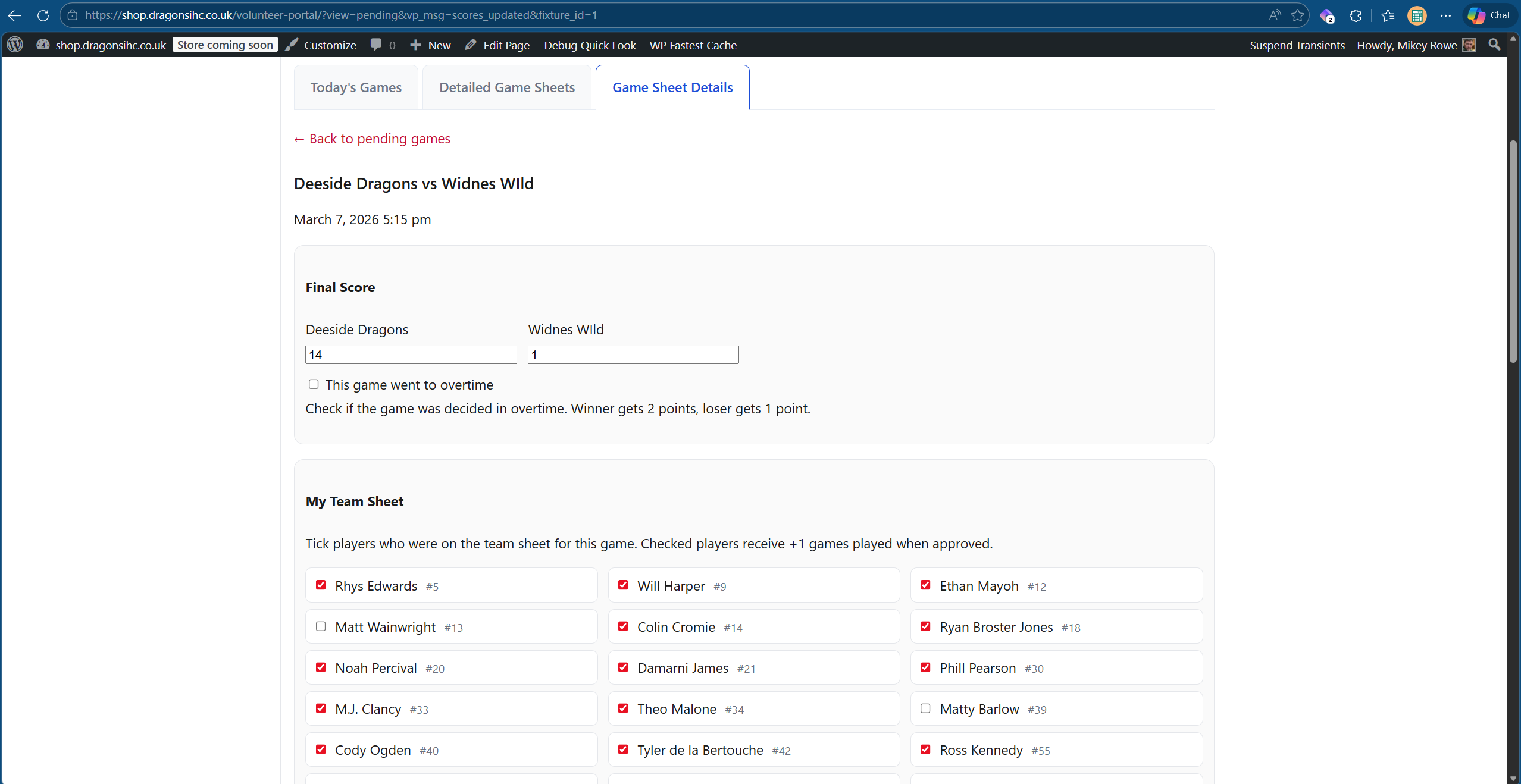
Check the score and select the players who played
The first job inside the game sheet is to make sure the score has populated correctly. If it has not, update it here. Then tick the box next to each player who took part in the game.
- The score should already be there if Step 1 was completed first.
- Select only the players who actually featured in that match.
- Saving scores first is still the preferred workflow, as it keeps league tables current sooner.
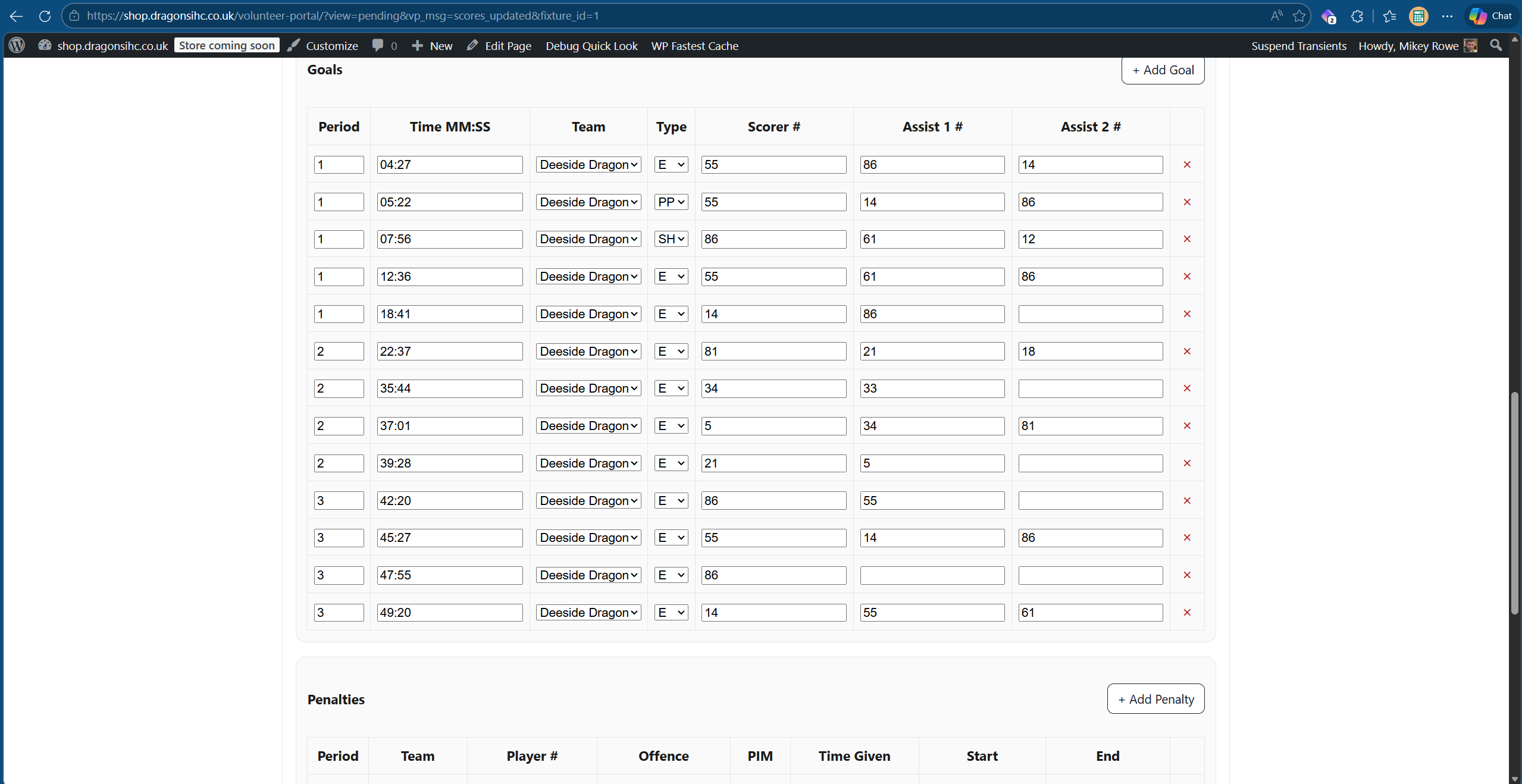
Enter goal scorers, assists and penalties
Add the game events from the sheet by entering player numbers and the relevant details for each record.
- Enter the scorer and assist player numbers where applicable.
- Add penalty information using the correct player number.
- Select the correct period, time and any other required event details.
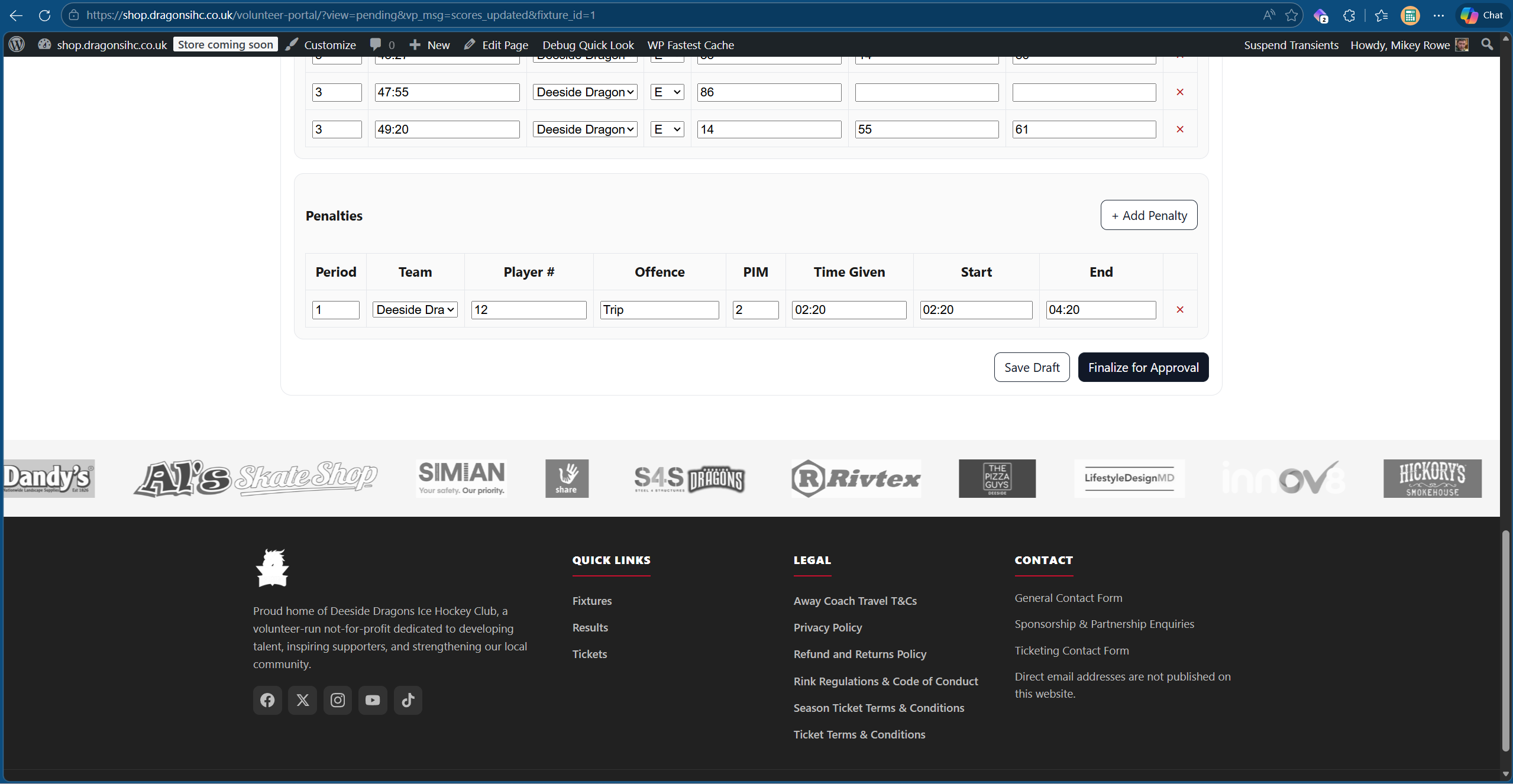
Click finalise
When the game sheet has been fully completed, click Finalise. This sends the sheet to the web admin for sign-off.
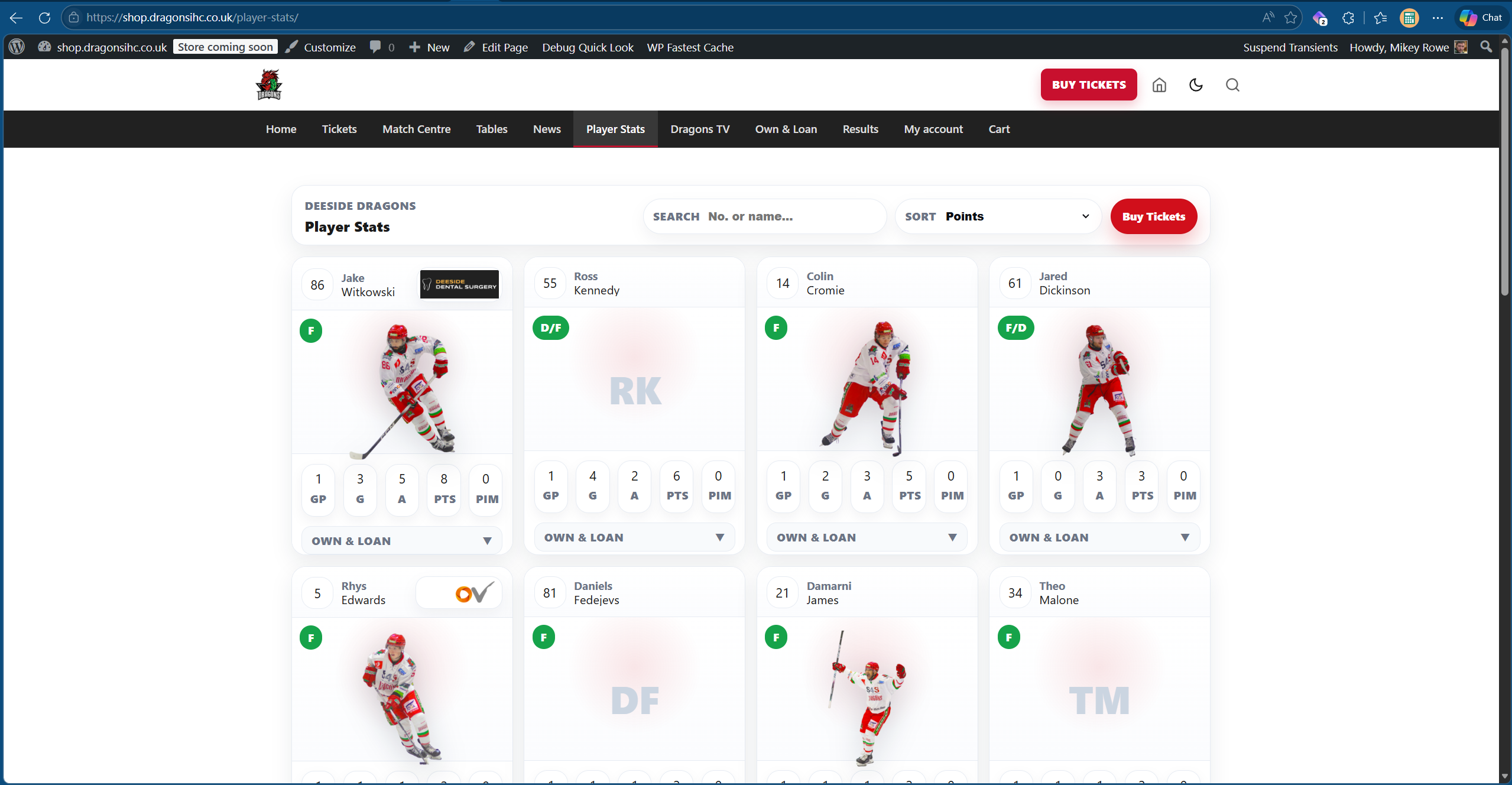
Player statistics update automatically after authorisation
Once the game sheet has been finalised and authorised, the player statistics update automatically across the website.
- No separate stats entry is needed after approval.
- This keeps the player stats area aligned with the signed-off game data.